How to Transfer and Watch Movies Offline on iOS
March 6, 2026 • 6 min read
Watching movies offline on an iPhone or iPad can be frustrating if you rely only on Apple's default apps. Many video formats require conversion, and traditional transfer methods often depend on cables or iTunes.
Fortunately, the Infuse media player solves this problem. Infuse supports a wide range of formats including MKV, MP4, AVI, and even Blu-ray files, allowing users to store movies directly on their devices and watch them without an internet connection.
This guide explains two of the easiest ways to transfer movies to your iOS device and watch them offline.
Method 1: Wireless Browser Transfer
The fastest way to move movies to your iPhone or iPad is through Infuse's built-in browser transfer feature. This allows files to be uploaded directly from your computer using Wi-Fi.
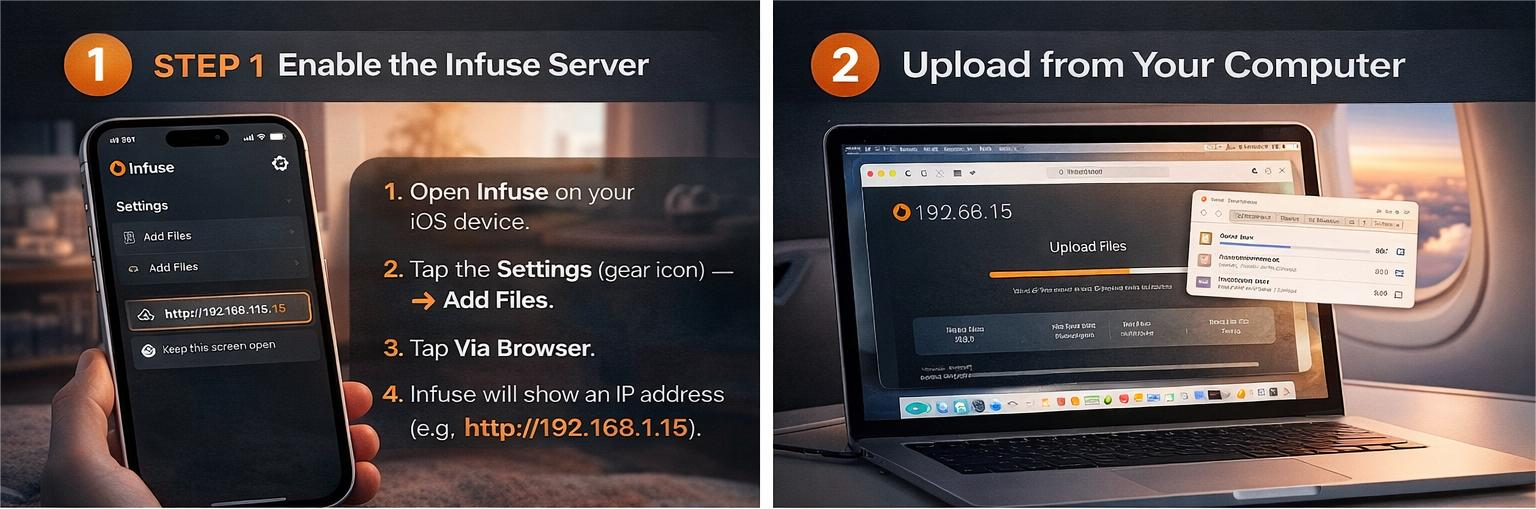 Wireless browser transfer using Infuse
Step 1: Enable Browser Upload
- Open Infuse on your iPhone or iPad
- Tap Settings
- Select Add Files
- Choose Via Browser
- An IP address will appear (example:
http://192.168.1.15)
Step 2: Upload the Movie
- Open a browser on your computer
- Type the IP address displayed in Infuse
- Drag and drop your movie file into the browser window
- Wait for the upload to finish
Method 2: Download from Cloud Storage
If your movie library is already stored online, Infuse can connect to popular cloud services and download the files for offline viewing.
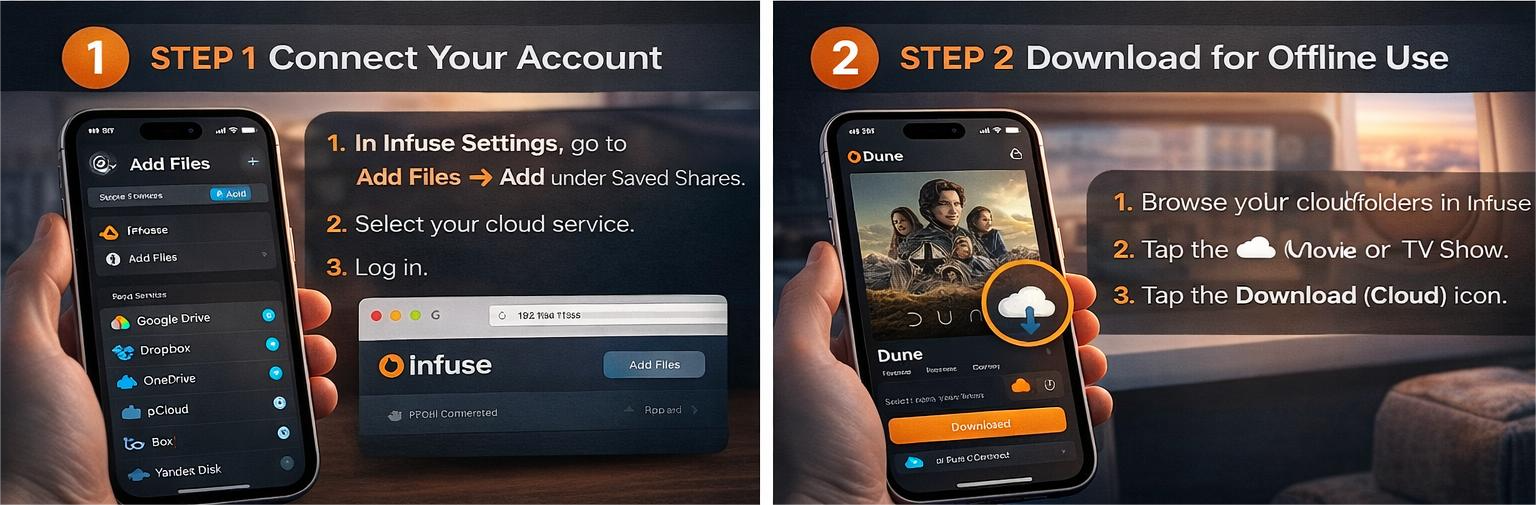 Downloading movies from cloud storage using Infuse
Step 1: Connect Your Cloud Account
- Open Infuse Settings
- Tap Add Files
- Select Saved Shares
- Choose Google Drive, Dropbox, or OneDrive
Step 2: Download the Movie
- Browse your folders inside Infuse
- Select a movie
- Tap the Download icon
- The movie will be saved locally for offline playback
Why Many Users Prefer Infuse
Compared to the default Apple TV application, Infuse provides far greater flexibility when managing personal video libraries.
- Supports MKV, AVI, MP4 and many other formats
- Automatically downloads subtitles
- Organizes movies with posters and metadata
- Allows wireless transfers without cables
Traveler Tip
If you plan to watch movies during flights, use videos encoded with H.264 or HEVC. These formats are optimized for iOS hardware decoding and help preserve battery life during long viewing sessions.
Conclusion
With the Infuse media player, transferring and watching movies offline on iOS devices becomes simple. Wireless uploads and cloud downloads eliminate the need for cables or complicated conversion tools.
For travelers or anyone who prefers offline viewing, Infuse offers one of the most flexible and convenient ways to enjoy personal media libraries on iPhone and iPad.
Disclaimer
The information in this article is intended for educational purposes only. This guide demonstrates how to transfer and manage personal media files on iOS devices using the Infuse media player.
Readers should ensure that any movies or media content transferred to their devices are legally obtained and comply with applicable copyright laws in their region.
This website does not host, distribute, or provide copyrighted media files. All trademarks, applications, and product names mentioned belong to their respective owners.